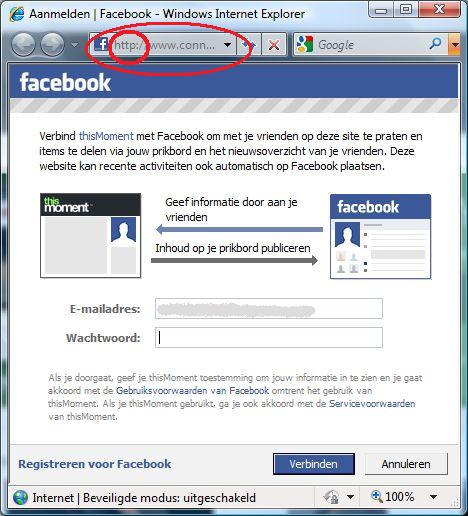
There are lots of websites (including dae’s weblog) that allow you to log in using your Facebook account. It’s strange you get a pop up window that hardly shows you the URL, which means you don’t know if you’re really submitting your credentials to Facebook, unless you check it first. And since the Facebook window doesn’t use an SSL-certificate, your name and password are sent over the network in plain text anyway. Wouldn’t it be better if this window featured an SSL certificate and a bigger URL bar, that shows exactly where your name and password are going?
Monthly Archives: June 2009
@LauraChappell University Projects Page #WireShark #Twitter @TweetDeck
If you put your ear to the railroad (make sure there’s no train coming!), you can hear what’s going on. That’s exactly what Laura Chappell did to “hear” the traffic that crosses your network as soon as you use Twitter. She captured all traffic (in so called WireShark Trace Files) and she wrote two amazing reports about it (one about Twitter in general and one about TweetDeck). The available trace files will help you to follow her steps of research. Try it yourself! Interesting!
#Ubuntu as #PPP #dialin server with a #modem
Imagine: You’re runing an Ubuntu box with a modem connected to it. You don’t want to use it for dialing out to the internet (that’s how it was done last millennium), but you want to set it up as a dial-in server. It’s strange, but most of the online manuals I found don’t cover this, so I will.
You need to configure a PPP dialin server and we’ll do exactly that in the next few steps:
- You need mgetty. Install mgetty by using the following command:
sudo apt-get install mgetty
- Copy /etc/event.d/tty1 to /etc/event.d/ttyS0 (ttyS0 = COM1; ttyS1 = COM2 etc). The last line of /etc/ttyS0 contains a line that goes like:
exec /sbin/getty 38400 tty1
Change it, so it says:
exec /sbin/mgetty -s 57600 -D /dev/ttyS0
- If you have an /etc/ppp/options, back it up by using the following command:
sudo mv /etc/ppp/options /etc/ppp/options.bak
and make sure /etc/ppp/options looks like this:
lock
10.0.0.1:10.0.0.2 #The first address is the address you can use to access your server and the second address is the one that is asigne to your PC after the connection comes up - Make sure to create an /etc/ppp/options.ttyS0 with the following content:
10.0.0.1:10.0.0.2
That’s it. Nearly done.
- The last thing on our list is to define dialin users in /etc/ppp/pap-secrets. Remember: this file is (or should be) protected. Use:
sudo nano -w /etc/ppp/pap-secrets
to change it. Make sure it has the following line somewhere:
user * password *
Example:
johndoe * secret *
Done! Let me know if it worked for you.
#WPML 1.0.2 for #WordPress is out!
As I logged on to my WordPress Dashboard this morning, I found out that WPML version 1.0.2 had been released! Unfortunately the automatic upgrade didn’t work in one go. Automatic reactivation of the upgrade plugin failed, but when I manually activated it afterwards, it worked. It looks a tiny bit fast than the old version… Now I have to go and see if I can find the Change Log. WPML is a WordPress plugin that allows you to make your WordPress multilingual. Not its content (although there is a built-in option that allows you to have your posts translated by a human in exchange for a little money), but the plugin is a technical solution that allows you to translate your posts and everything else that’s required to make your visitors experience your blog in their language.
