@Flickr optimized display for the #iPhone : Why I don’t use m.flickr.com

Flickr, the photo and video site has a special entry for iPhones. Take your iPhone to http://m.flickr.com and you’ll see a special iPhone optimized version of Flickr. That sounds great, but I don’t think it is. The iPhone version is far less functional than the regular site (http://www.flickr.com): you can’t organize photos in Sets, Groups are inaccessible and the iPhone optimized site won’t let you use the Zoom function on your iPhone! And that bugs me, because I love my iPhone, but the screen is still small… You have to work with the fixed dimensions of the iPhone optimized site. And that’s a bit strange, because at the bottom of flickr.com there’s an option to switch to the regular flickr.com, which brings back all functionality! Except for a tiny thing or two. Like most cell phones, the iPhone still has no support for Flash, which is why videos cannot be displayed (m.flickr.com wraps the video in .mp4, which should be playable by your iPhone).

If you’re not a power user and you just want to click a few pics, then the optimized m.flickr.com will work just fine on your iPhone. If you’re a Flickr member and you post photos and video yourself, you want to do more than just click-a-pic and switching between the regular and the mobile version is a waste of time and doesn’t make any sense…

I’ve been experimenting with an iPhone optimized version of dae’s weblog, but I gave it up for the reasons mentioned above. Losing significant navigation features, as well as functionality wasn’t worth it for me!

More and more sites are offering optimized versions for cell phones and the iPhone in particular, but I’m not using them. Functionality needs to improve first and in the meantime I’ll have the regular site design! It’s funny: On the one side there’s Apple trying to offer its users a true deskop experience and on the other side web sites are being transformed to optimize design and content for mobile display.

Did you know you can share your ideas and suggestions for Flickr at: http://www.flickr.com/groups/flickrideas/

Crash course #FeedBurner

FeedBurner is a service, offered by Google, allowing you to “burn” RSS feeds. But what is an RSS feed and what is FeedBurner’s added value to it? Tip: Print out this crash course, so you can easily reproduce the steps without switching between browsers.

First: RSS stands for Really Simple Syndication. It allows you to “harvest” headlines from web pages. But FeedBurner does a little bit more… Of course you can harvest headlines from other people’s web sites, but if you have your own web site (with RSS support) you can share its content and much more! Go to your site and check the presence of the orange icon:

feedburner01

Good. If you see the orange icon, it means your site supports RSS. If it doesn’t, there are several ways of getting it depending on the system you’re using, but I won’t cover that now. Let’s go on: Click on the icon. You should see the following:

feedburner02

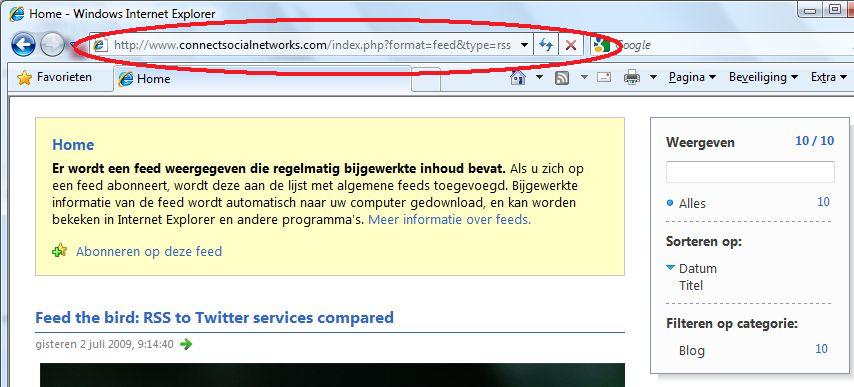
Write down the address from the address bar or copy it by clicking the address bar and press Ctrl-C. Next, go to http://feedburner.com

feedburner03

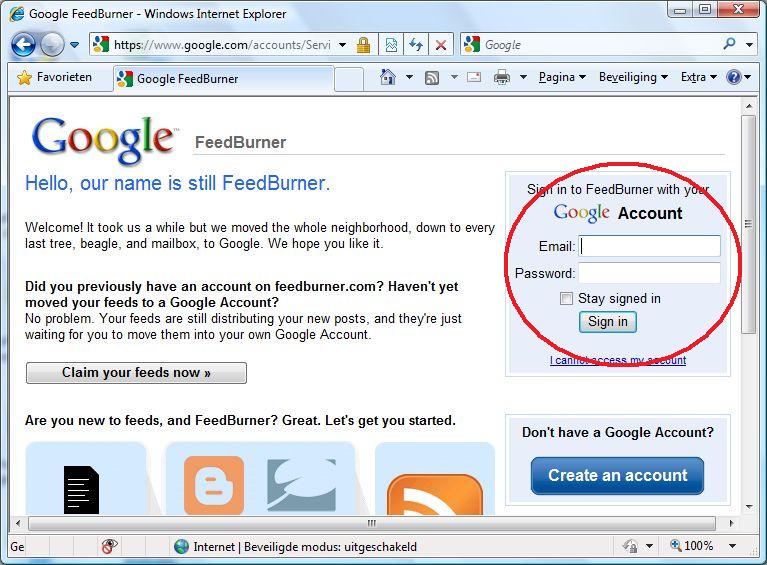
You need a Google account. Sign in or sign up, if you don’t have any yet. Once you’re signed in, Choose “Burn a feed right this instant” and type (or paste by using Ctrl-V) the address of your RSS feed:

feedburner04

Press Next. Enter a title for your feed and click Next again:

feedburner05

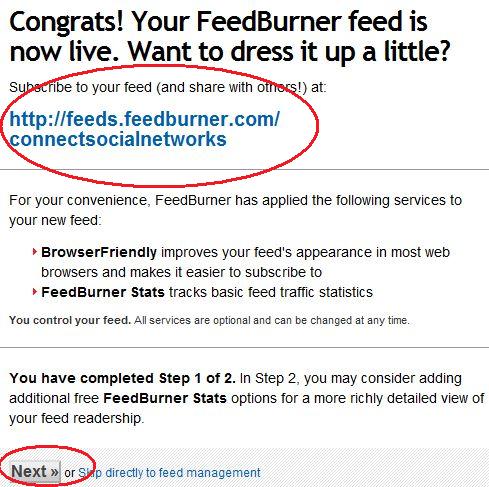
Your feed has been created! Write down the address of your FeedBurner feed (or copy it by using Ctrl-C) and click Next:

feedburner06

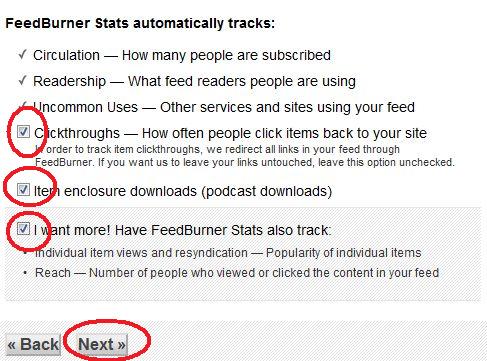
Check every option and click Next:

feedburner07

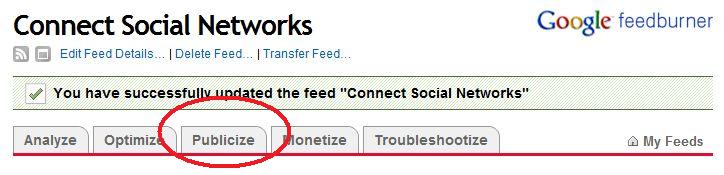
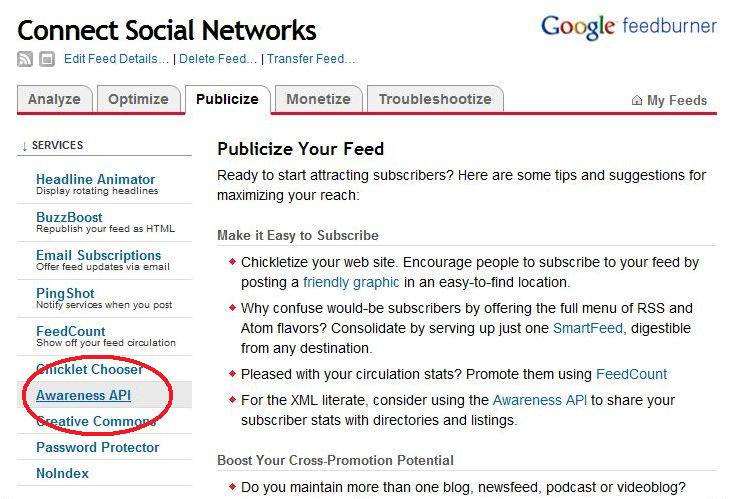
Now, go to Publicize:

feedburner08

Click Awareness API:

feedburner09

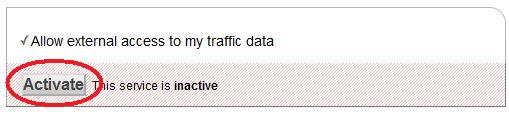
Activating the Awareness API allows other services to exchange information with FeedBurner. Click to Activate:

feedburner10

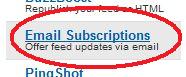
Next, click Email Subscriptions:

feedburner12

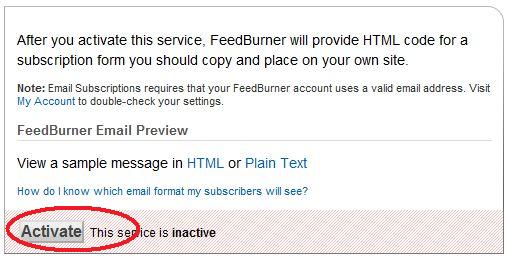
And Activate:

feedburner13

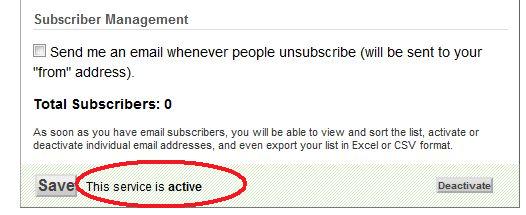
FeedBurner reports the service is now active:

feedburner14

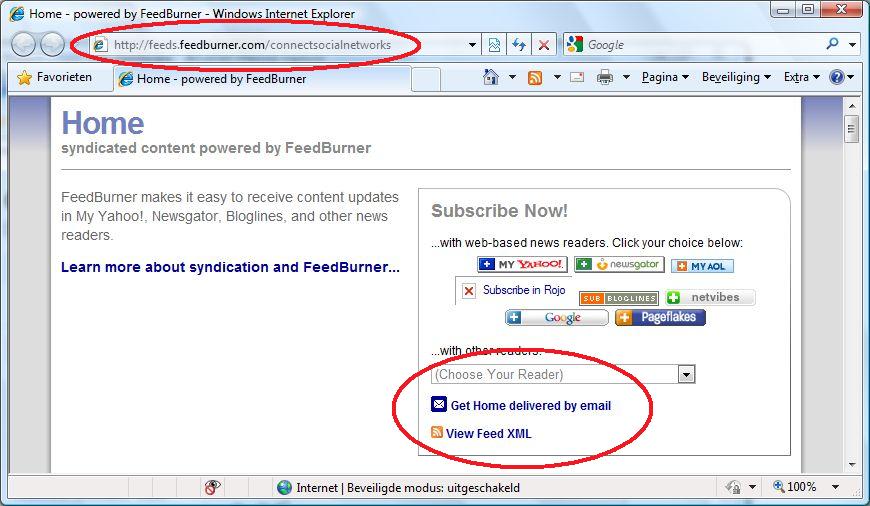
Type or paste the address of your FeedBurner feed into the address bar. It shows you the ability to subscribe by Email:

feedburner15

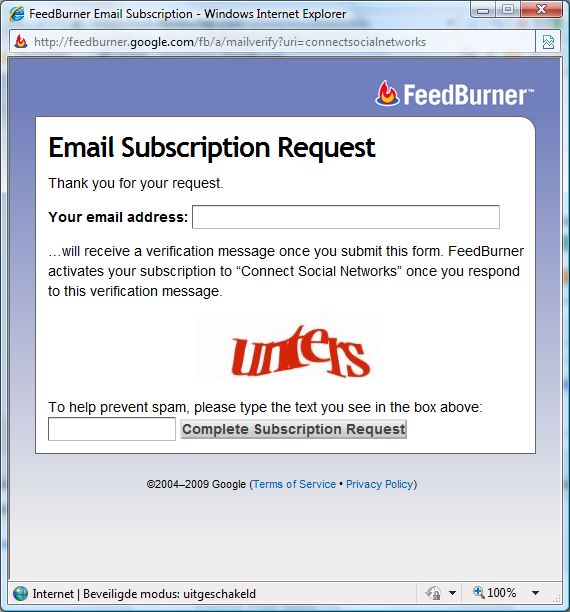
If somebody wants to subscribe to your updates by email, they need to enter their email address:

feedburner16

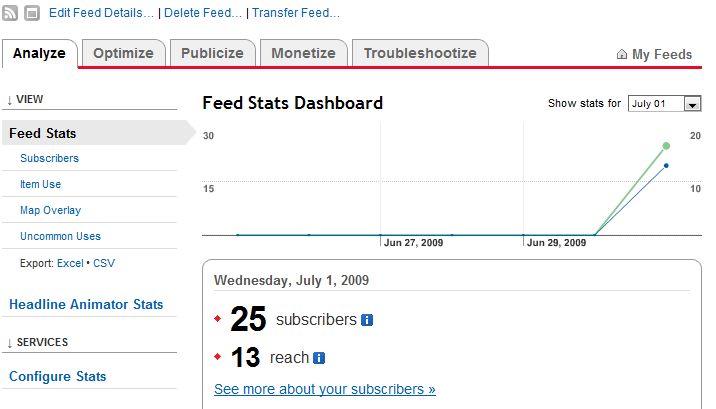
The Analyze screen shows you the number of subscribers to your feed:

feedburner17

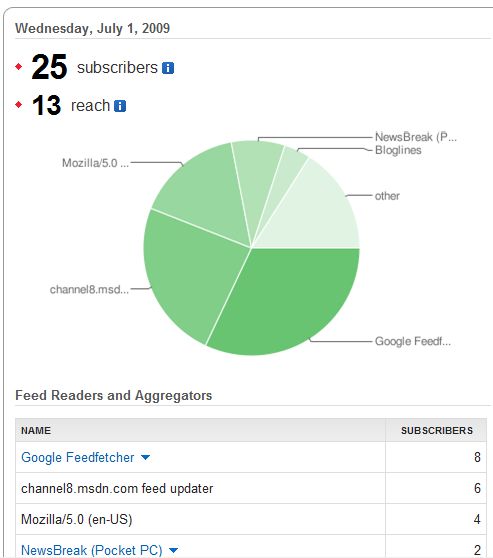
It also shows which systems your subscribers are using:

feedburner18

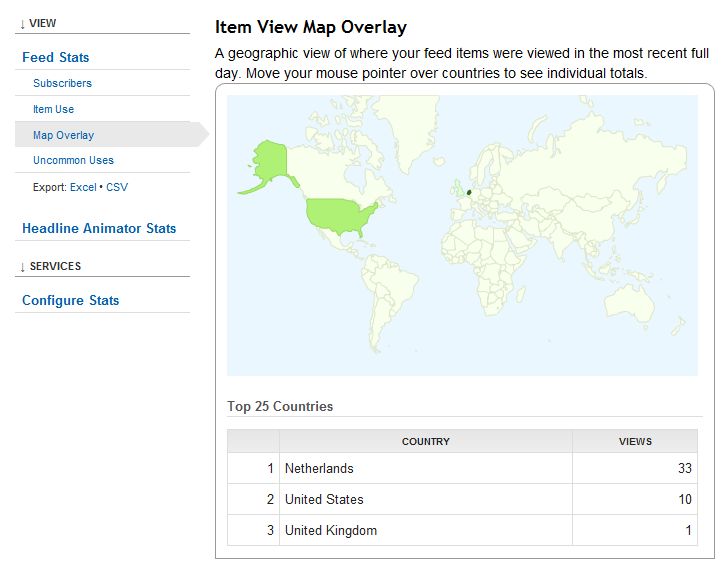
And of course it shows the origin of your subscribers. Hey, we’re talking Google here! 🙂

feedburner19

Conclusion: You’ll understand that FeedBurner can give you a lot of insight on who’s reading your posts. FeedBurner offers them different ways of receiving updates and even if they want to receive updates by email, FeedBurner automatically takes care of it all, so you don’t have to send out thousands of emails after updating your web site. If people choose to unsubscribe from your email updates, FeedBurner handles everything and you don’t need to do anything! It goes without saying, that the result of subscriptions by email appear in the statistics nicely.

Have fun keeping your web site up to date and I hope my crash course has been able to contribute to it!

#Evaluation #jd09nl

Right. I just got home after a day out. First I went to the NGN in Bunnik and then I went to Utrecht for an evaluation of the Dutch Joomla!Days 2009. It was great, as usual, guys! I’m surprised every time I realize how cool it is to catch up with people who share the same interests. And @EstherTwitts: we have a lot of coffee to drink together and @GXJansen: your feed is on its way! 🙂